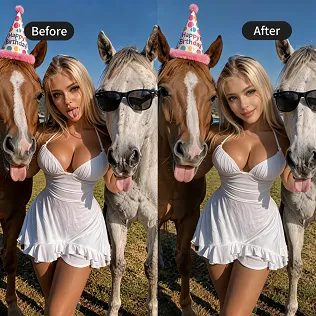
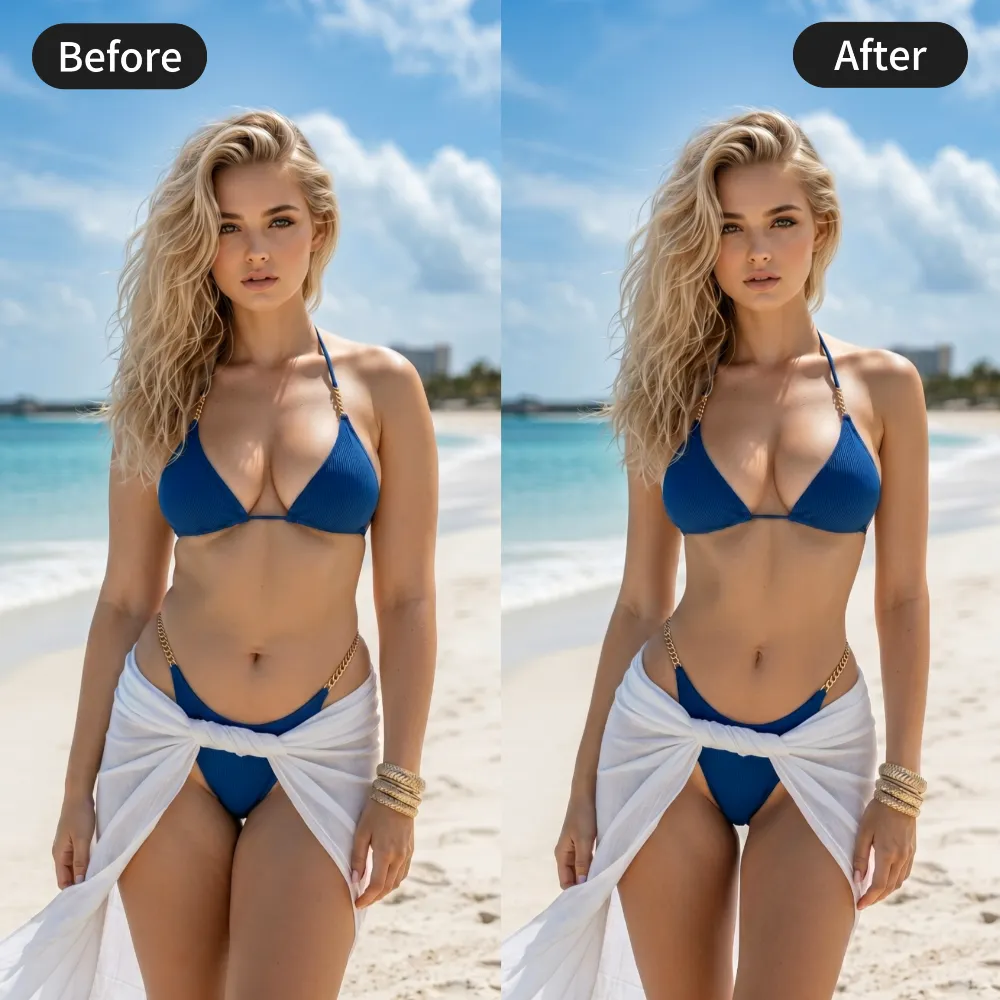
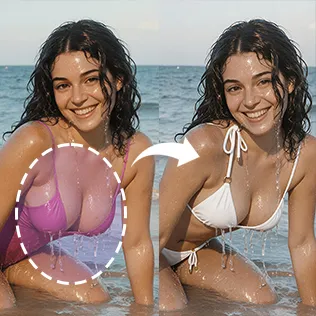



Most AI image-to-video tools still restrict what you can generate.
Upload something a little more sensual, intimate, or expressive — and the result either gets blocked, heavily sanitized, or loses the original feel.
Reelme is built differently.
It is an unrestricted Image-to-Video tool. You keep full creative control over the motion, and the system does not apply the usual content filters that kill NSFW or borderline results.
Here’s exactly how to use it.
The 3-Step Process
Step 1: Upload Your Image
Go to Unrestricted AI Image to Video.Select Single Image and upload your photo.This becomes the starting frame.
Step 2: Describe the Motion (or Use a Template)
In the prompt box, tell the AI how you want the subject to move.You can also pick one of the ready-made motion templates if you want a faster start.
For better results, see our dedicated prompt guides:
Wan 2.7 NSFW Prompt Examples · Seedance 2.5 Unrestricted Prompts · Practical Motion Prompt Guide
You do not need to water down your description. The tool is designed to accept the motion you actually want.
Step 3: Generate
Choose duration and quality, then click Generate. The finished video appears in My Library. Download it or continue refining.
Why Unrestricted Actually Matters Here
On most platforms, the moment your motion description becomes more physical, intimate, or less “safe,” the generation quality drops or gets refused.
On Reelme:
- You are not forced into sanitized, generic movement
- Subject identity (face + body) is prioritized so the person stays consistent
- You can push for more natural, expressive, or sensual motion without the usual censorship layer
This is the real difference.
The tool is not just another image-to-video converter — it is built for creators who need freedom over the result.
Advanced Options
Once the basic flow works for you, these settings give more control:
- Duration: 5s / 10s / 15s
- Quality: Fast → HD → Ultra HD
- Audio upload (for timing or atmosphere)
- Input type: Multi Images or Frames Image for tighter sequence control
- Model: Secret 5.0 (currently tuned for uncensored motion and consistency)
After generation, you can also send the clip into Video Extend or Video-to-Video to make it longer or refine the style while locking identity.
These are optional. The core process stays three steps.
Beginner vs Experienced
New users:
Just follow the 3 steps. Upload → describe the movement you want → Generate.
Get a real result first.
More experienced users:
Start with a stronger source image, use clearer motion direction, generate in higher quality, then chain into Video Extend or Video-to-Video for a more finished piece.
Try It Now
If you want image-to-video without the usual restrictions, this is the direct way to do it.
Start Unrestricted Image to Video →
Upload one image.
Describe the motion you actually want.
Generate.


'%20fill-opacity='.4'/%3e%3cpath%20d='M29.07%2012c.982%200%201.473%200%201.88.194.35.166.667.457.863.79.23.389.27.859.354%201.797.27%203.072.518%207.922-.297%2010.472-1.03%203.22-5.8%206.507-8.257%208.023-.477.295-.715.441-1.038.515a2.227%202.227%200%200%201-.868.006c-.324-.07-.565-.215-1.046-.504-2.512-1.51-7.435-4.811-8.478-8.04-.888-2.752-.622-7.52-.327-10.524.09-.914.135-1.372.365-1.757.196-.327.516-.617.86-.78.407-.193.89-.192%201.853-.192H29.07z'%20fill='var(--fill-0,%20%238B5CF6)'/%3e%3cpath%20d='M26.337%2017.75a.854.854%200%200%201%201.212-.11.872.872%200%200%201%20.11%201.218l-6.088%207.392a.855.855%200%200%201-1.2.122l-.07-.063-3.906-3.944a.871.871%200%200%201%200-1.222.853.853%200%200%201%201.216%200l3.24%203.268%205.486-6.66z'%20fill='var(--fill-0,%20white)'/%3e%3c/svg%3e)