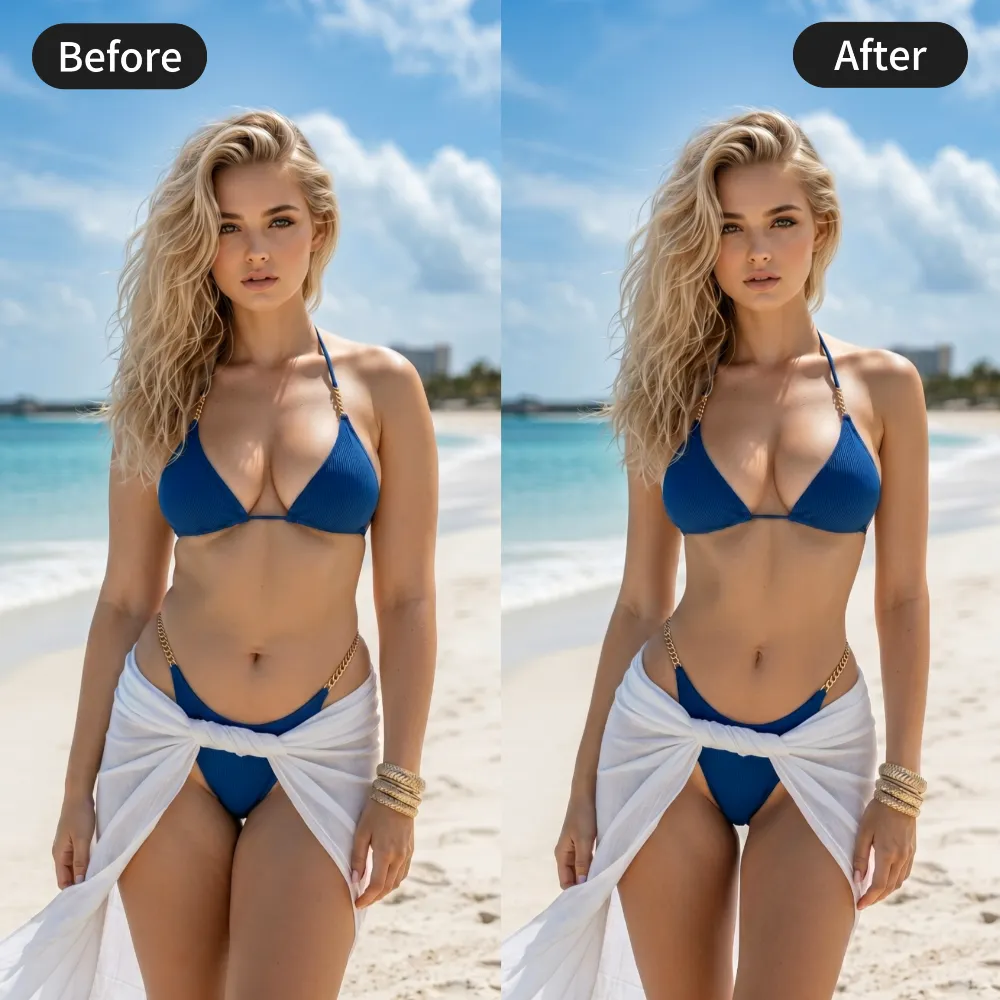
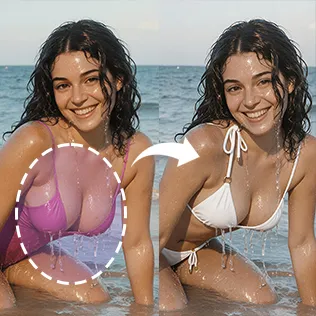
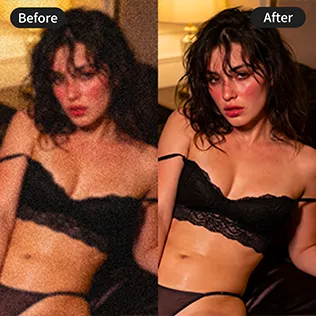




When using unrestricted AI image-to-video models, many creators run into the same frustrating issues: important details disappear, motion looks stiff, and characters become unnatural. The original image looks fine, but the generated video loses clarity, anatomy, or realism.
These problems are common — and most of them can be significantly reduced with the right workflow.
This guide focuses on practical solutions, not theory.
Common Quality Problems
Here are the most frequent issues creators face:
- Local detail loss (important areas become blurry, flattened, or disappear)
- Unnatural or stiff motion
- Broken character consistency (face drift, body proportion changes, identity loss)
- Texture smearing, lighting breaks, or anatomical errors during movement
These are symptoms of the same core problem: the source image is often not optimized for video generation.
Solution 1: Optimize the Source Image First (Image-to-Image Preprocessing)
This is the most effective and most overlooked step.
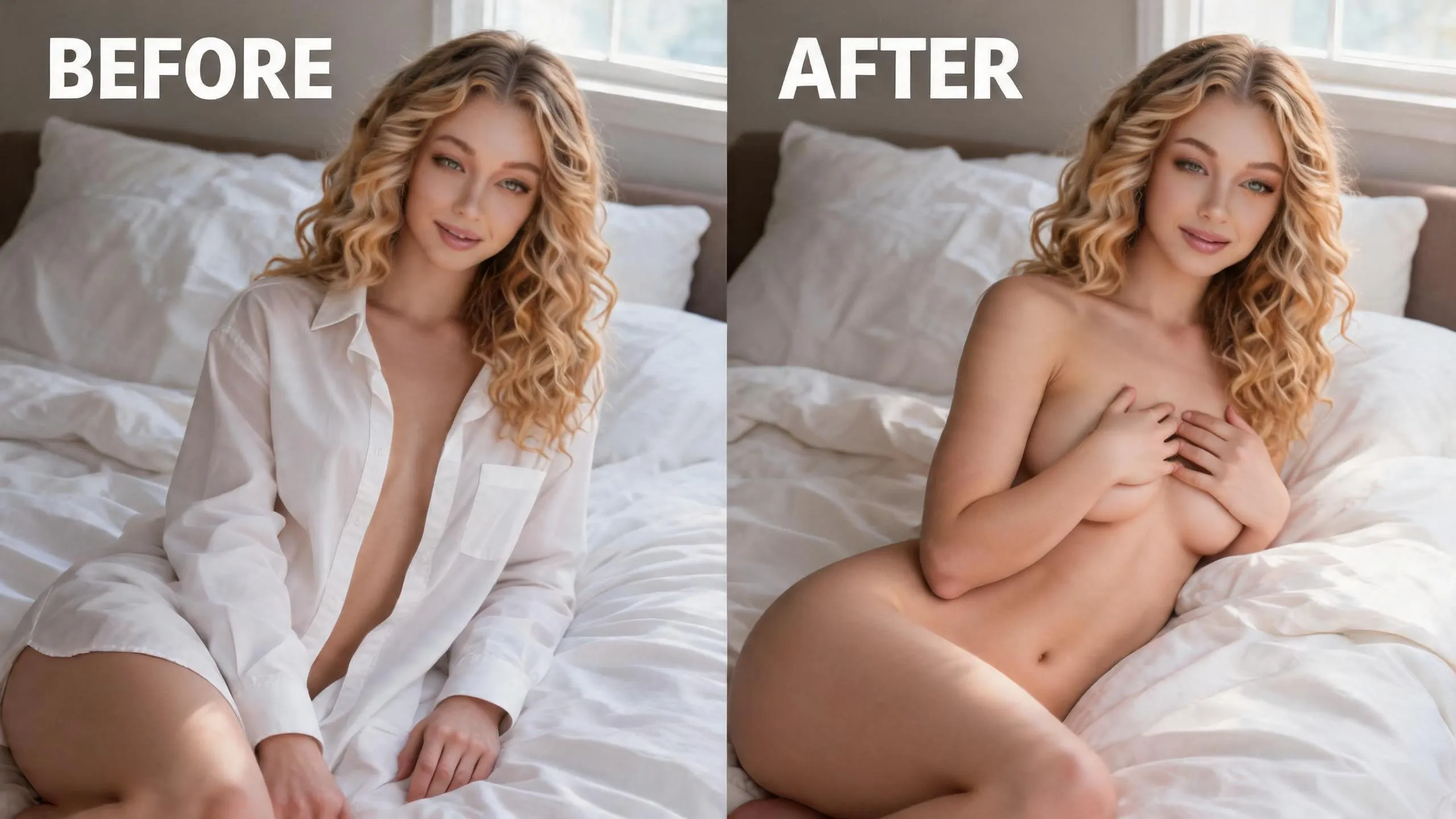
Instead of feeding your original image directly into the video model, first run it through image-to-image to create a cleaner, more video-friendly intermediate image.
Why this works:
- Strengthens critical details that video models tend to lose
- Improves lighting, texture, and edge clarity
- Reduces anatomical ambiguity
- Makes the image more stable for motion generation
Recommended Image-to-Image Prompt:
Highly detailed, sharp anatomical definition, clear skin texture, natural lighting, well-defined details, clean edges, realistic proportions, no blur, no smearing, optimized for image-to-video, high clarity, preserve original identity and composition
Optional stronger version:
preserve fine details, enhance local contrast on key areas, natural skin pores and texture, sharp definition, maintain original identity, clean and stable structure, optimized for motion generation
Further reading:
For more advanced motion and physics-focused prompts (especially soft-body dynamics), see our Practical Prompts Guide for Unrestricted Boob Jiggle.
For stronger identity preservation techniques, check the Unrestricted AI Face Swap Video Guide 2026.
How to do it:
- Take your original reference image
- Use image-to-image with a moderate strength (usually 0.35–0.55)
- Prompt for higher detail clarity, natural anatomy, and clean textures
- Generate several versions and select the one with the best detail retention and natural look
- Use this optimized image as the input for image-to-video
This single step often solves a large portion of detail loss and improves overall stability before the video model even starts working.
Solution 2: Use Precise Prompting
Once you have a better source image, your prompts need to actively protect details and guide natural motion.
Core Video Prompt Structure:
[your action description], natural body dynamics, realistic weight shift, fluid secondary motion, highly detailed skin texture, sharp anatomical definition, no blur, no detail loss, perfect face consistency, identity locked, same facial features and body structure throughout, smooth and natural movement
Model-specific prompt tips:
Different models respond better to slightly different prompt styles. For more tailored examples, check:
Key principles:
- Explicitly demand detail preservation
- Describe motion in physical terms rather than just the final pose
- Lock character identity strongly
- Avoid vague language that gives the model room to simplify
Useful prompt directions:
- For detail retention: “highly detailed skin texture, sharp anatomical definition, no blur, no smoothing, micro-details preserved across frames”
- For natural motion: “natural body dynamics, realistic weight shift, fluid secondary motion, soft tissue movement following physics”
- For character consistency: “perfect face consistency, identity locked, same facial features and body structure throughout the video”
Keep prompts clear and direct. Overly long or conflicting instructions often reduce quality.
Solution 3: Choose the Right Model and Parameters
Different unrestricted models vary in how well they keep details versus how naturally they handle motion.
General parameter guidance:
| Setting | Recommended Direction | Notes |
|---|---|---|
| Input Resolution | As high as practical | Helps detail retention |
| Motion Strength | Medium to medium-low | Too high often causes stiffness or collapse |
| Image-to-Image Strength | 0.35 – 0.55 | Balance between enhancement and fidelity |
| CFG | Adjust based on model | Increase slightly if details are disappearing |
Test short clips first. It is faster to diagnose problems on 2–4 second generations before committing to longer videos.
Solution 4: Post-Generation Fixes
If the result is still not good enough:
- Extract key frames and refine problematic areas with image-to-image or inpainting
- Re-generate only the weak sections when possible
- Use the best frame as a new reference for a second video pass
- Keep changes minimal to avoid introducing new inconsistencies
Post-processing should be a refinement step, not the main solution.
Quick Workflow Checklist
Before generating video:
- Is the source image high enough resolution?
- Have you created an optimized intermediate image via image-to-image?
- Does the intermediate image clearly show the important details?
- Is your prompt actively protecting details and guiding natural motion?
After generation:
- Are critical details still visible?
- Does the motion feel physically believable?
- Is the character identity stable throughout?
- If not, which stage failed — source image, prompt, or model settings?
Final Notes
Most quality problems in unrestricted AI image-to-video are not random. They usually come from feeding the model an image that is not well prepared for motion generation.
The highest-leverage fix is almost always the same:
Optimize the source image first with image-to-image → then convert to video with precise prompts and appropriate parameters.
This approach consistently reduces detail loss, improves motion quality, and helps maintain character consistency.
Test the workflow on a few images and adjust based on the specific model you are using. Small changes at the source stage often produce the biggest improvements.


'%20fill-opacity='.4'/%3e%3cpath%20d='M29.07%2012c.982%200%201.473%200%201.88.194.35.166.667.457.863.79.23.389.27.859.354%201.797.27%203.072.518%207.922-.297%2010.472-1.03%203.22-5.8%206.507-8.257%208.023-.477.295-.715.441-1.038.515a2.227%202.227%200%200%201-.868.006c-.324-.07-.565-.215-1.046-.504-2.512-1.51-7.435-4.811-8.478-8.04-.888-2.752-.622-7.52-.327-10.524.09-.914.135-1.372.365-1.757.196-.327.516-.617.86-.78.407-.193.89-.192%201.853-.192H29.07z'%20fill='var(--fill-0,%20%238B5CF6)'/%3e%3cpath%20d='M26.337%2017.75a.854.854%200%200%201%201.212-.11.872.872%200%200%201%20.11%201.218l-6.088%207.392a.855.855%200%200%201-1.2.122l-.07-.063-3.906-3.944a.871.871%200%200%201%200-1.222.853.853%200%200%201%201.216%200l3.24%203.268%205.486-6.66z'%20fill='var(--fill-0,%20white)'/%3e%3c/svg%3e)